

If you love taking your post-production to another level then compositing will be something you love – and so do I! I’ve put together a list of tips for compositing photos and hopefully using my years of experience to give you some advice you may have not considered before.
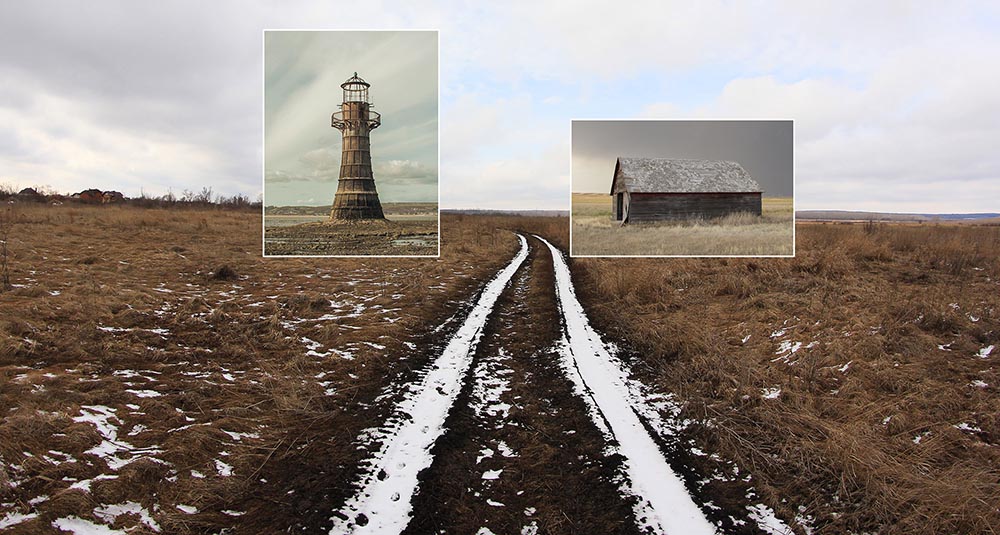
1. Match the Angles
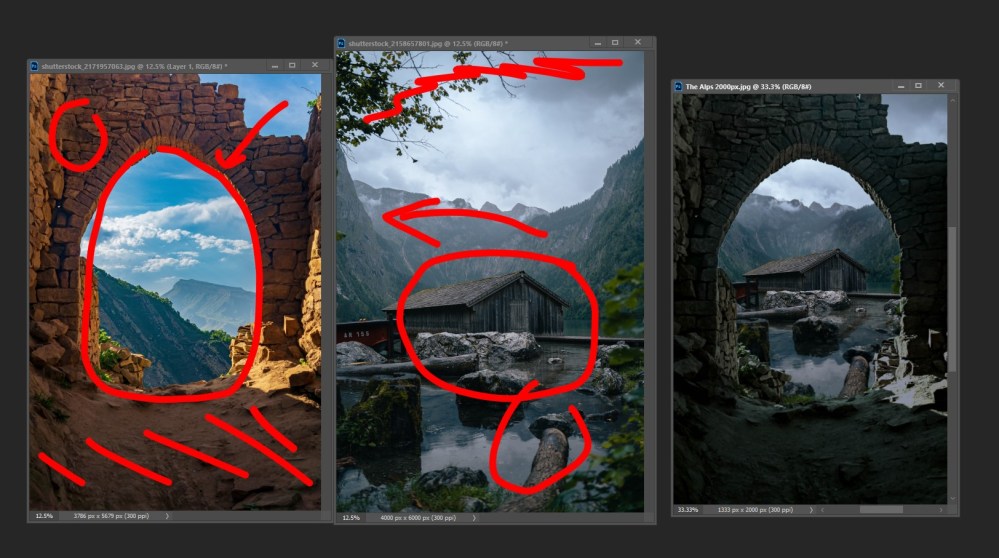
When choosing the images to composite consider how similar (or different) the angles are in each file. Matching up the angles across all the images you use will make the final composite look more authentic. There are other elements too that you need to match up, such as lighting (and shadows) which will help make a convincing composite.
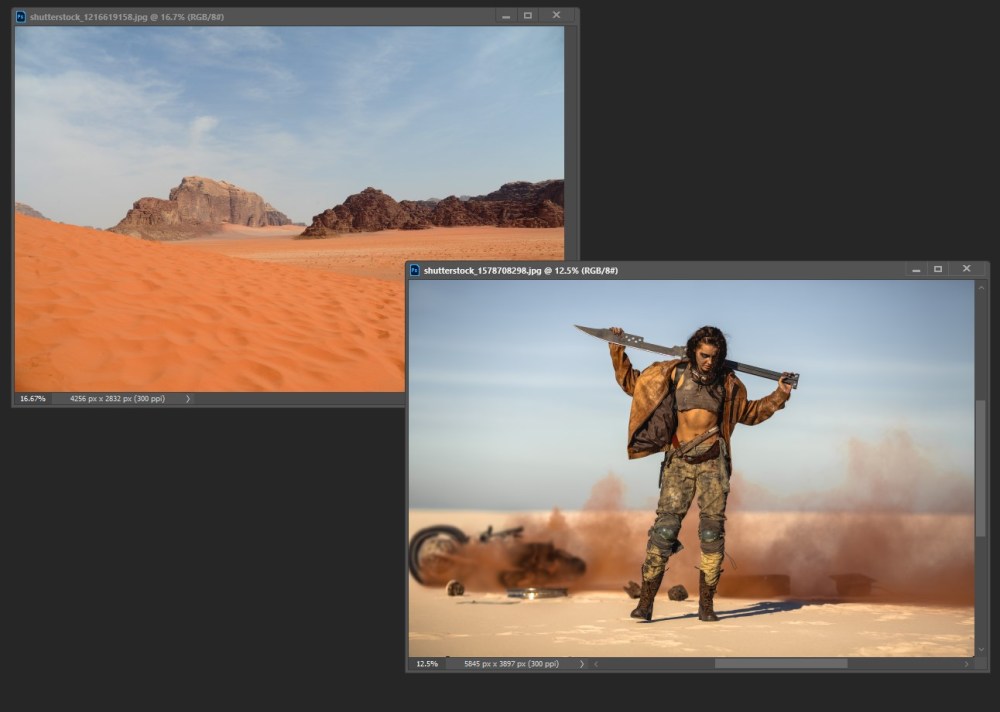
2. Use Shadowless Photos
Alternatively if you don’t want the headache of aligning shadows across different images then choose shots without any shadows to begin with! It’s not that hard to create drop shadows and give a sense of directional lighting in Photoshop. By starting off with images with no shadows you have much greater control on how the final image looks.

3. Plan it Out in Advance
Don’t go into it blindly – plan out what you want your composite to be about and then list down all the elements you need to reach the goal.
Gather together all the colour swatches, files and other assets and save them in relevant groups in Photoshop. Only add in elements that you know will contribute to your story. Changing your mind halfway through can results in a disjointed composite.
4. Name Your Layers
Oh yes, the lazy compositors downfall! Don’t worry, we’ve all done it – and I still do! But forgetting to name your layers when building a complex composite in Photoshop will only frustrate you when you’re looking for the right asset.
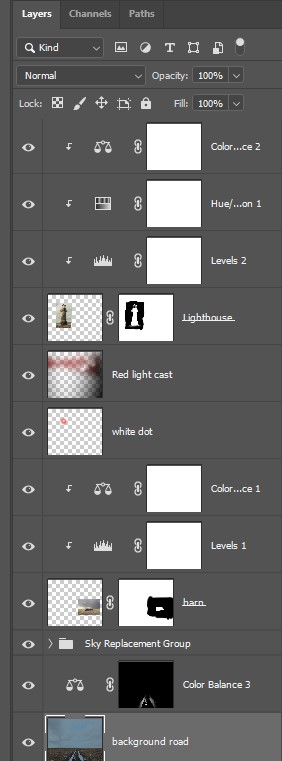
Turn off ‘Auto Select’ layer option in Photoshop to stop the software deciding which elements it thinks you want to adjust or move.

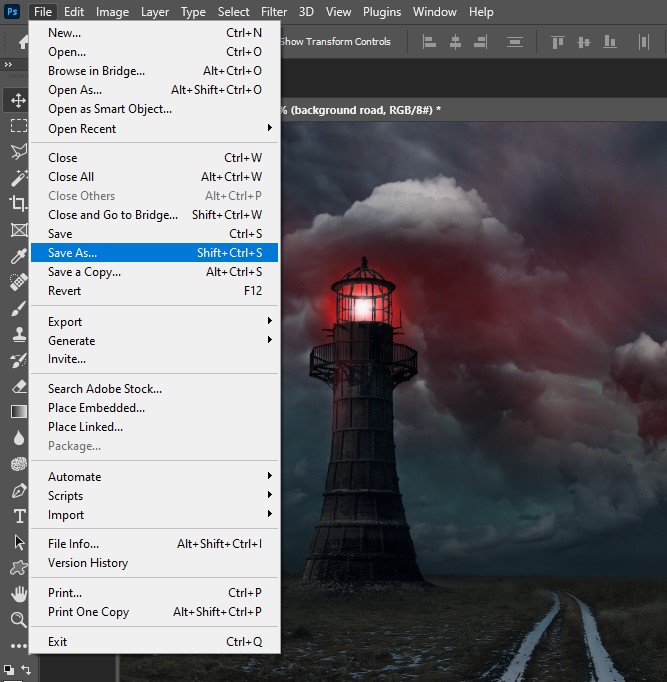
5. Constantly Save as .PSD
From the get-go save your layered document as a .PSD file and regularly hit that CTRL+S / CMD+S button every minute or so. It’s easy to forget, but starting that habit from the beginning of your composite will keep it in your mind to do it regularly.
We all know how Photoshop can be a little ‘unreliable’, especially after new updates, so it’s best not to bank on it being stable all the time.
6. Use Layer Masks
Masking is a non-destructive way in Photoshop to hide and reveal aspects of a image in a composite. Adding a layer mask to all your assets as you stack them up during the composite is not bad practice, even if you don’t intend to use them straight away.
Layer masks allow you to remove backgrounds and cut out subjects with ease. The same goes for layer adjustments which are more specific edits you can make such as exposure, colour, contrast etc.
7. Use Umbrella Toning
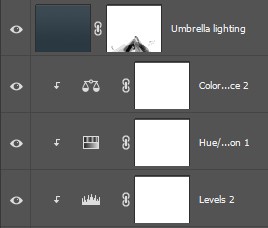
The term ‘umbrella toning’ is probably something I use, rather than the Photoshop world – but it’s simply a technique I apply to blend the colours together across a number of layers.
Once your composite is in place, add a new layer (at the top of all other layers, hence the umbrella) with either a single unifying colour, or a gradient that matches most of the tones in the composite. Change the blending mode on that umbrella layer to suit the composite.
7 Tips for Compositing Photos Summary
I hope these 7 tips help your photo composites become easier to setup, manage and ultimately look amazing.
 Stephen Walton Photography
Leave a Comment